SAVE
your configurations and settings OFTEN.
To protect data integrity, this system will TIME OUT after a period of inactivity. When a system timeout occurs, unsaved settings and changes are NOT retained.

|
SAVE
your configurations and settings OFTEN. To protect data integrity, this system will TIME OUT after a period of inactivity. When a system timeout occurs, unsaved settings and changes are NOT retained.
|
The Dashboards in this system are considered “Standard Reports.”
Self-Service Reports are “Custom Reports” created by permissioned users to show visualizations that may contain various combinations of data metrics.
·
Self-Service
Report Features include:
o
Drag and
drop functionality for selecting data metrics
o
Select and
change the “type of chart/graph” used for display with the click of a button
o
Save the custom
configuration with or without data updates
o
Share custom
reports as needed while maintaining data integrity (requires Project Support
involvement via Service Now)
|
For additional technical requirement information, best practice options, and setting details continue below AND refer to the Appendix. |
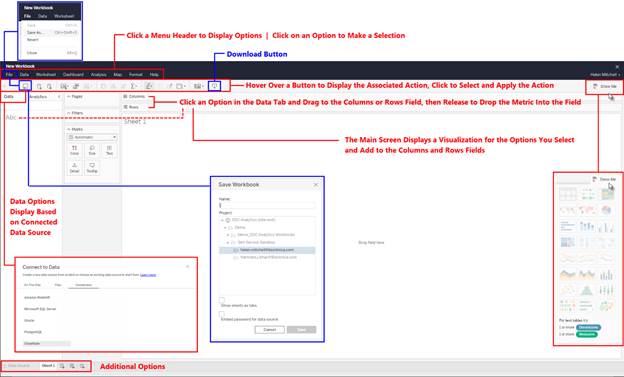
Figure 94: Self-Service (Custom) Reports Configuration Screen
·
Shared Custom Reports display on the EDC Analytics home screen.
o Click on the link to view
the report onscreen.
o Use the  (download) button to save the report to a file.
·
Only a
permissioned user may develop a Self-Service report in this system.
o
Your
environment contains a dedicated folder on the Tableau Server that can be
accessed only by the permissioned users in the “Self-Service Creator” group.
§ One (1) folder displays for each Permissioned Self-Service
Report User.
§ Folder name = email address.
§ The folder permission is applied at the
folder level using the individual’s name/email (instead of using the group
permission).
§ Self-Service reports can be saved ONLY to the
main EDC Analytics Site Directory, (folder name e.g., Self-Service
Sandbox).
§ A permissioned user can access ONLY their folder
but may be able to see the folder name for each member in the Group.
§ Permissioned users access their folder using a
static link.
§ The link is provided to each permissioned user
(from project manager/project support/similar).
§ The permissioned user can create Tableau
workbooks, as needed, for personal use and/or to share with a broader audience.
·
When a Self-Service
report is ready to be published/shared, a Service Now request to the Project
Support team may be initiated.
·
The Project
Support team will publish the workbooks to the Tableau Server in the Study Specific
folder.
o As part of the publishing action, the Project
Support team will remove any credentials embedded in the workbook to protect
data integrity.
o
Each study
with Self-Service Report Users will have a Sponsor folder and a Study folder in
the EDC Analytics\Self-Service Reports folder.
§ E.g., EDC Analytics Workbooks\Self-Service
Reports\BioCure\BIOC-1008-TL
EDC Analytics Workbooks\Self-Service Reports\<Sponsor ID>\<ProtocolName>
o
Self-Service
Reports can be shared with users based on groups that have been created in the
EDC system for the study (e.g., Monitor group, Reviewer group, etc.).
§ If needed, a special Tableau group* can be
created to include (grant access to) all users who are permissioned to access
specific Self-Service Reports. E.g.,
include a subset of users from one (1) or more groups.
*Requires creation of the “special group” in the SURE system. Contact your Project Manager for information,
as needed.
·
Permissioned
users may access Self-Service Reports via a link on their home page.
Related Topics
Tableau Hierarchy
Create a Self-Service Report
Save Process for Ad Hoc Reports