The Projected status (Forms Dashboard) produces data results ONLY when there is a Study Visit Schedule configured (EDC). Click the check mark in the filter selector to deselect that Status option and update the onscreen display of data. For details about features and functions that are available on multiple screens within this system, refer to the Navigation and Features, Common Dashboard Features and Navigation, and Glossary sections plus Table 2.
The Forms Dashboard presents permission-based high-level and detailed information specific to the Forms for the study.
Refer to Form List Grid – Display Record Options and Table 5: Description of Elements on the Forms Dashboard for additional information.
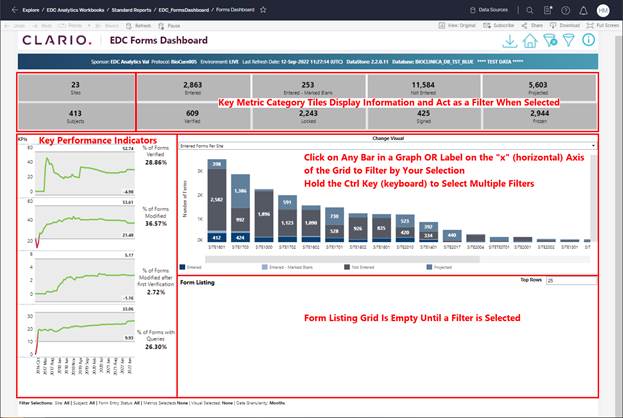
Figure 85: Forms Dashboard
·
The Forms
Dashboard aggregates data and information into visualizations. Many aspects (tiles, bar graphs, labels) of
the visualizations act as filters for selecting specific metrics and updating
the visualizations (excluding KPIs) to represent the data for the selections.
·
Multiple
options are available that allow you to View, Filter, Download, and Drill Down
to additional details about the category metrics that display on this screen.
·
Use the  (open
filter) button at the top of the screen to set and select the metrics that
display on your dashboard screen.
(open
filter) button at the top of the screen to set and select the metrics that
display on your dashboard screen.
·
Click on a
Tile, Bar (in chart), or Label (below Bar chart) to filter by selected
metrics.
o
Hold the
Ctrl key (keyboard) to select multiple filters.
o
All tiles
and charts update to represent data for your selection (n/a for KPI graphs).
o
The
Projected Forms metric (gray box) includes data based on the study specific Visit
Schedule settings in the EDC System.
When a study DOES NOT contain a visit schedule, use the Dashboard Filter
feature to “hide” this tile.
·
Hover over
a tile to display onscreen information with a definition for the metric
category.
·
Permissioned
users may click a link to navigate to additional detail. Links display for selected metrics when you
hover to display additional onscreen detail.
·
Click the  (view
detail) button to display onscreen detail for the for a selection.
(view
detail) button to display onscreen detail for the for a selection.
·
Use the  (clear
filter) button at the top of the screen to remove all filters and reset
the onscreen display of data.
(clear
filter) button at the top of the screen to remove all filters and reset
the onscreen display of data.
·
The KPI
trend graphs are NOT filters, and the KPI graph data is not affected by
filter selections.
The table below provides details about the elements on the Forms Dashboard.
|
Option |
Description |
|
Sites (tile) |
The number of Sites with Forms in the environment. |
|
Subjects (tile) |
The number of Subjects with Forms in the environment. |
|
Category Metric Tiles |
Each Form Category tile displays the category name and number of Forms for the category. |
|
Key Performance Indicators (KPIs) |
These tiles display KPI data visualizations on the left side of the screen. Date labels display at the bottom of the KPIs tile. Refer to KPIs for details. |
|
Bar Charts |
The bar charts display data for selected Metric Categories. By default, all categories are selected and aggregated data displays. Use the filter options to isolate and display data for selected metrics. |
|
Form List Grid |
A grid displays when one (1) or more filter options are used to isolate data. By default, only 25 records display in the Form List Grid. Refer to Form List Grid – Display Record Options for additional detail and options to change the display and/or download the data. |
Table 5: Description of Elements on the Forms Dashboard
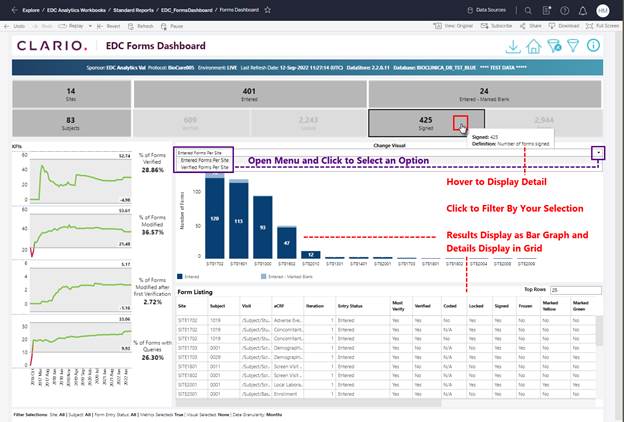
Figure 86: Forms Dashboard Grid
Related Topics
Form List Grid – Display Record Options